You pick up your phone in the morning, still half asleep, and try to read a message on WhatsApp. The text is so tiny you have to hold the phone inches from your face like you're reading a treasure map. Or maybe it's the opposite — the font is so large that every paragraph takes up three screens and you're scrolling forever. Both extremes are exhausting. And the worst part is that a lot of people assume there's nothing they can do, that "the phone just came this way." There's plenty you can do, actually. And it's simpler than you might think.
Adjusting your font size is one of the most useful settings on any smartphone, and most people have never touched it. This isn't just for "older folks who aren't good with technology." It's about visual comfort, eye health, and everyday convenience. In this article, you'll learn how to do it on Android, on iPhone, and inside the most popular apps — WhatsApp, Instagram, and browsers included. No complicated steps.
Why font size matters more than you'd expect
Squinting to read tiny text isn't just annoying. Over time, it can cause headaches, eye fatigue, and even trouble focusing. We often talk about everyday stress without connecting it to simple digital habits — like spending hours staring at a poorly configured screen. Your body sends signals, but we tend to brush them off.
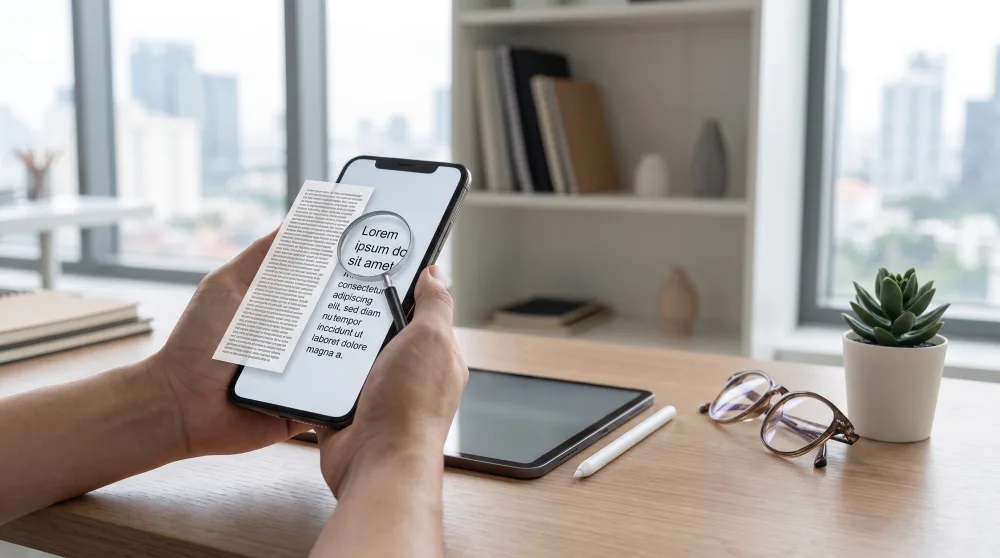
On top of that, the default font size that comes factory-set on phones is designed for an average that may not work for you at all. It depends on your screen size, your eyesight, and even how far away you tend to hold your phone. A 6.7-inch screen has different defaults than a 5.5-inch one, but both ship with generic settings. Changing them means personalizing your phone for how you actually use it — not for some imaginary average user the manufacturer had in mind.
How to change the font size on Android
Android runs on the vast majority of phones sold in the US, from budget models to flagship devices. The good news is that the logic is similar across almost every brand, even if the exact path varies a bit depending on whether you have a Samsung, Motorola, Xiaomi, or something else.
Here's the general path:
- Open the Settings app (the gear icon).
- Look for Display or Font size and style. On some phones, this option lives under "Accessibility."
- Tap Font size and drag the slider to the right (larger) or left (smaller).
- Your phone shows a live preview, so you can see the result before committing.
On Samsung specifically, the path is usually: Settings > Display > Font size and style. On Motorola, it's typically Settings > Display > Font size and display. On Xiaomi, look under Settings > Display > Text size. If you can't find it, use the search bar inside the Settings app and type "font" — that works in most cases.
What about display size — what's that?
Many phones have two separate options: font size and display size (sometimes called "screen zoom"). The difference is straightforward: font size only changes the text. Display size scales everything on the screen — icons, buttons, images, all of it. If you want your phone to feel more spacious and easier to tap around in, adjust the display size. If you just want to read more easily, stick to font size.
How to change the font size on iPhone
On iPhone (iOS), the idea is the same but the path is different. Apple calls the setting Text Size, and it affects most apps that follow the system's standard.
- Open Settings (the gray gear icon).
- Tap Accessibility, then Display & Text Size, and then Larger Text. Or go straight to Settings > Display & Brightness > Text Size.
- Drag the slider to increase or decrease the size.
- If you need text even larger, turn on the Larger Accessibility Sizes toggle under Accessibility. It unlocks sizes well beyond the default range.
Here's a handy iPhone trick most people don't know about: you can add a text size control to your Control Center — that panel that slides down when you swipe from the top-right corner of the screen. Once it's there, you can adjust your font size on the fly without digging into Settings. To set it up, go to Settings > Control Center and add "Text Size" to your controls.
Adjusting the font inside the apps you use most
System-level settings go a long way, but some apps have their own font settings that override what your phone uses. WhatsApp, Instagram, browsers, and email apps are the most common examples. So it's worth knowing how to adjust each one.
WhatsApp has its own font size option built right into the app. On Android, go to WhatsApp Settings (the three dots) > Chats > Font size. You can choose between small, medium, and large. On iPhone, this fine-tuning option doesn't exist in the same way — the app follows whatever text size you've set in iOS, so you adjust it using the steps we covered above.
Instagram and other social media
Instagram, TikTok, and X (formerly Twitter) don't have their own font settings for the main feed. They follow whatever you've set at the system level. So if you've already adjusted things in Android or iPhone settings, the change will show up there too. What you can control in these apps is zoom: on Android, pinching with two fingers lets you zoom into photos and videos. For captions or long comment threads, unfortunately there's no way to zoom in within the apps themselves — your best bet is to increase the global font size.
Browsers: Chrome, Safari, and others
For reading websites, browsers have their own zoom controls. In Google Chrome (Android and iPhone), tap the three dots in the top-right corner and go to Settings > Accessibility. There you'll find a text zoom slider specifically for web pages. Setting it to 125% or 150% makes most sites much easier to read without breaking the layout.
In Safari on iPhone, while you're on a page, tap the "AA" icon that appears in the address bar. From there, you can increase or decrease the text size with a single tap. Quick and easy.
Email: Gmail and Outlook
Gmail on Android follows the system font. Same on iPhone. But within the app, under Settings > Accessibility, you can adjust the default size for incoming formatted emails. Outlook has a similar option in its reading settings. Worth exploring, especially if you deal with a lot of work emails.
Accessibility features that go beyond font size
If bumping up the font size doesn't fully do the trick, there are other features that can help a lot. They're tucked inside the Accessibility settings on both Android and iPhone, and they were designed specifically to make screens easier to read for everyone — regardless of their situation.
One of the most useful is bold text. Turning this on makes all the letters appear heavier and easier to distinguish, even without making them bigger. On iPhone, it's under Settings > Display & Brightness > Bold Text. On Android, it's usually found alongside the font options.
Another great feature is the magnifier or screen magnification. On Android, find it under Settings > Accessibility > Magnification. Once it's on, a triple-tap on the screen zooms in on that area like a magnifying glass. Super handy for tiny text that doesn't change even when you increase the font — like fine print in a PDF or a screenshot with text.
High contrast is another option that makes a big difference in bright environments. White text on a dark background (dark mode) or a dedicated high-contrast mode can be a game-changer for anyone who struggles with certain color combinations. On iPhone, go to Settings > Accessibility > Display & Text Size and look for "Increase Contrast." On Android, search for "High contrast text" inside Accessibility settings.
Quick tips for people who use their phone in different situations
Here's something most people don't think about: the ideal font size actually changes depending on where you are. Reading in bed with your phone close to your face? Smaller text works fine. Outside in bright sunlight, holding your phone farther away? You need bigger text. There's no single setting that works perfectly in every situation.
If you use your phone in a variety of settings, a practical approach is to find a comfortable middle ground for your main use case and rely on browser zoom when you need more. Another option is the accessibility shortcut: both Android and iPhone let you set up a quick gesture — like triple-clicking the side button — to toggle accessibility features on and off without opening Settings.
And if someone in your family, especially a parent or grandparent, complains that they can't read their phone properly, these adjustments can make an enormous difference in their experience. Sometimes people give up on using their phone altogether because they think it's too complicated, when the real issue is just that the font is too small. Five minutes of tweaking can fix that completely.
The next step is easy: grab your phone right now, open Settings, and try a different size than what you're using. The preview shows up instantly. If it feels better, keep it. If not, change it back. There's zero risk. Your eyes will thank you.