You head upstairs, open your laptop or grab your phone, and the stream buffers. Or the video call pixelates. Or the delivery app just won't load. The router sits down there in the living room or entryway, working perfectly fine, but the signal reaches the second floor like it's been run through a coffee filter. Less than half of what it should be. This is way more common than you'd think, and the good news is you can fix it without spending a fortune — and in most cases, without replacing the router you already have.
Why does the signal drop so much between floors?
Wi-Fi travels through the air as radio waves, similar to the AM or FM signal you pick up in your car. These waves spread out in every direction, but they lose strength when they hit obstacles. And the worst possible obstacle inside a home is exactly what separates the ground floor from the one above: the concrete ceiling slab.
Concrete and steel absorb and block Wi-Fi signals brutally. To put it in perspective, a drywall partition causes the signal to lose around 30% of its strength. A reinforced concrete slab can swallow more than 70%. If there are metal pipes, electrical wiring, or a water heater in the way too, the signal weakens even further. The result is that dreaded one-bar Wi-Fi that can barely load WhatsApp.
Another contributing factor is the frequency your router uses. Modern routers operate on two bands: 2.4 GHz and 5 GHz. The 5 GHz band is faster, but it doesn't travel through walls and ceilings nearly as well as 2.4 GHz. If your phone is automatically connecting to the 5 GHz network, it might be prioritizing speed over range — which only makes things worse when you're far from the router.
Before you buy anything: free fixes worth trying first
Before you spend a dime, it's worth trying a few simple changes that solve the problem for a lot of people. None of them require any technical know-how — just a little patience.
Move your router. It sounds obvious, but most people leave the router exactly where the technician put it during installation, which is almost always near the front door or behind the TV, pushed up against a wall or tucked inside a closed cabinet. Ideally, you want the router in a more central spot in the home and at a mid-level height — on top of a bookshelf, for instance, not on the floor and not up on the ceiling. The more central and elevated it is, the more evenly the signal spreads.
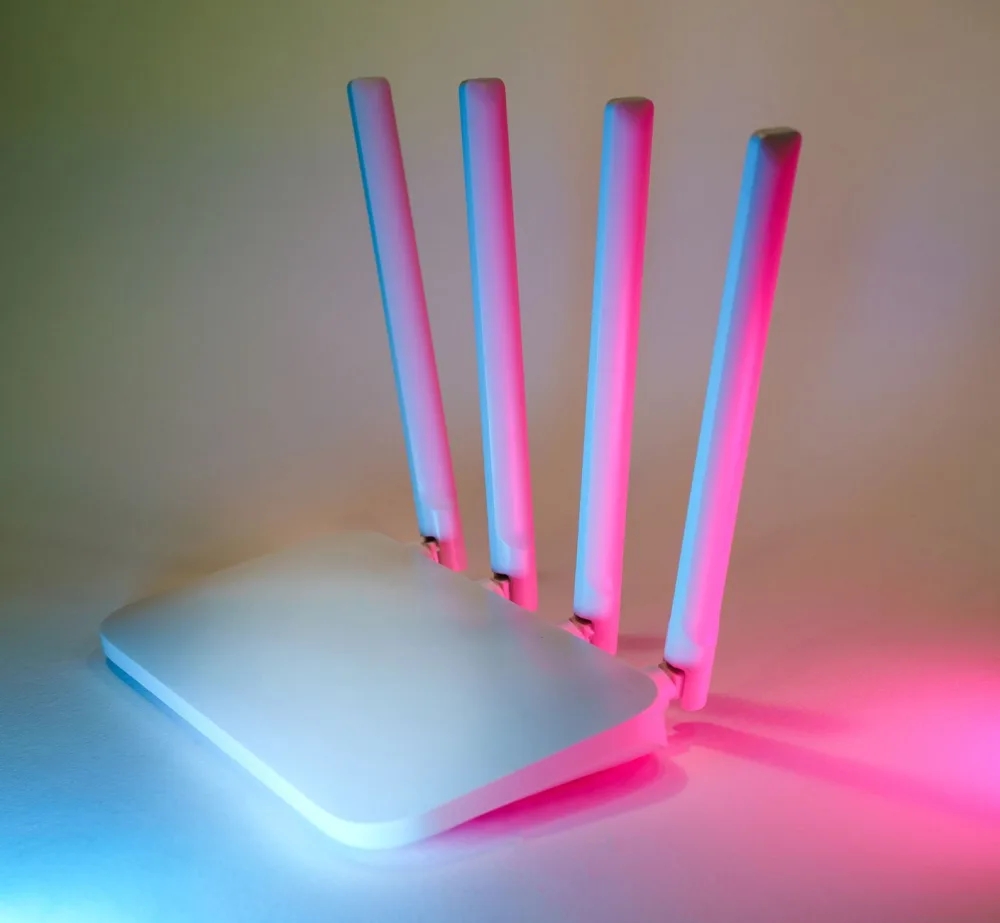
Adjust the antennas. If your router has external antennas you can reposition, point one of them straight up and angle the other horizontally. This improves coverage in multiple directions, including upward and downward. It takes about 30 seconds and most people have never done it.
Switch to the 2.4 GHz band upstairs. Most routers today broadcast two networks with similar names, like "MyNetwork" and "MyNetwork_5G." Upstairs, connect your devices to the one without "5G." The range is much better, even if the maximum speed is slightly lower. For streaming, social media, and video calls, the speed difference is practically unnoticeable.
Restart your router. Yes, the clichéd "turn it off and back on again" advice actually works sometimes. Routers can run for months without a restart and accumulate slowdowns, internal glitches, and messy connection tables. Unplugging it for 30 seconds and plugging it back in can fix issues that seemed completely mysterious.
Solutions that actually work (and what they cost)
If the free fixes didn't cut it, it's time to invest a little. There are three main options available today, each with very different price points and levels of complexity.
Wi-Fi extender: the cheapest option, but with caveats
A Wi-Fi extender — also called a repeater or range extender — is a small device you plug into an outlet, connect to your existing Wi-Fi network, and it rebroadcasts the signal to cover a wider area. You can find them for anywhere from around $15 to $40 at any electronics store or online retailer.
The catch is that a repeater creates a second, separate network. That means when you walk upstairs, your phone won't automatically switch to the extender's network — you have to go into your Wi-Fi settings and connect to it manually. On top of that, extenders cut bandwidth roughly in half, because they use the same channel to receive and retransmit the signal simultaneously. For browsing Instagram or sending messages, it works fine. For online gaming or high-quality video calls, it can be frustrating.
Powerline adapter: the pleasant surprise
This technology doesn't get nearly enough attention, but it's one of the best options for two-story homes. The idea is to use your home's existing electrical wiring as if it were a network cable. You plug one adapter into an outlet near your router and run a short ethernet cable from the router into that adapter. Then you plug a second adapter into any outlet upstairs. That second adapter broadcasts a local Wi-Fi signal that's strong and stable.
The signal travels through the home's electrical wiring without needing to pass through any concrete or walls. The results are usually much better than a repeater. A two-adapter kit typically runs between $40 and $80. Setup takes under 10 minutes and requires zero technical knowledge — it's literally: plug it in, connect the cable, done. The one caveat is that it works best when both adapters are on the same electrical circuit, which is the case in most homes, but in some older buildings it may not be.
Mesh system: the most modern and seamless solution
Mesh Wi-Fi systems are the most elegant way to solve the problem. They work like multiple routers operating together as a team, all sharing the same network name. As you move through the house, your devices automatically hand off to the nearest access point without you noticing and without dropping the connection.
The experience is completely different from using a repeater. You never have to switch networks manually, video calls don't freeze on the stairs, and streaming doesn't pixelate in the hallway. Brands like TP-Link Deco, Google Nest WiFi, and Amazon Eero sell two- or three-unit kits starting around $80–$100, with more advanced models going up to $300 or more. For duplexes, two-story homes, or townhouses, it's the investment that eliminates the problem for good.
How to choose the right option for your situation
There's no one-size-fits-all answer. It depends on the size of your home, how bad the signal drop actually is, and of course, how much you're willing or able to spend.
If the problem is mild — the signal reaches upstairs but is spotty — start with the free adjustments: reposition the router and switch to the 2.4 GHz band. In half of all cases, that's all it takes.
If the signal barely reaches upstairs and you want to spend as little as possible, a repeater is a reasonable fix for everyday light use. Just don't expect miracles for gaming or 4K streaming.
If you want a stable solution and don't mind spending a bit more, a Powerline adapter kit is often the best bang for your buck in a two-story home. It works well, installs easily, and doesn't require any complicated setup.
If you want the best possible experience — a network that just works everywhere without you ever having to think about it — go with Mesh. Especially if someone in the house works remotely, kids are doing school online, or you have a lot of devices connected at once.
Habits that make a difference day to day
Regardless of which solution you go with, a few simple habits will help keep your signal healthy over time.
Don't put your router inside a cabinet or behind the TV. Furniture blocks the signal just as much as a wall does. The router needs room to breathe and to "see" the surrounding space.
Keep the firmware up to date. Firmware is the router's internal operating system — think of it as the "Android" of the device. Manufacturers release updates that improve performance and patch security vulnerabilities. You can access your router's settings through a browser by typing in the address printed on the manual or on the label on the bottom of the unit — usually something like 192.168.0.1 or 192.168.1.1. Once you're in the admin panel, look for "Firmware Update" or simply "Update."
Avoid leaving too many unused devices connected. Security cameras, smart TVs on standby, wireless speakers, smart fridges — each one takes up space on the network. You don't need to disconnect everything, but knowing what's on your network helps you understand why things slow down sometimes.
Change your password periodically and use a network name that doesn't identify you. This isn't paranoia — it's just good sense. Neighbors unknowingly piggybagging on your network consume bandwidth and can cause unexplained slowdowns.
What to do right now
Start with the simplest step: move the router if it's tucked away in a corner, reposition the antennas if it has them, and connect your upstairs devices to the 2.4 GHz band. If the problem persists, a Powerline adapter kit is a safe and affordable bet — it works well in most homes and you don't need a technician to set it up. If you want a network that simply works everywhere without ever having to think about it, a Mesh system is the way to go. A weak Wi-Fi signal upstairs is a solvable problem, and in most cases the solution doesn't involve replacing your router or calling your internet provider.