Have you ever tried to read a message on your phone and had to bring the screen so close to your face you nearly pressed your nose against the glass? Or opened an app where the text was so tiny it looked like the fine print on a prescription label? Yeah. It happens to a lot of people — not just older adults. Anyone who wears glasses, anyone whose eyes are worn out by the end of the day, anyone who's been staring at a screen for hours: we've all been there at some point.
The good news is that both Android and iPhone have a whole range of settings that most people have never touched — settings that make a huge difference in reading comfort. This article walks you through, in practical terms, what's worth turning on right now.
Why is the default phone so hard to read?
Phone manufacturers set up their devices for an "average" user: someone with good vision, under 40, holding the phone at a comfortable middle distance. The problem is that this average user doesn't really exist. Everyone uses their phone differently, in different lighting, with different needs.
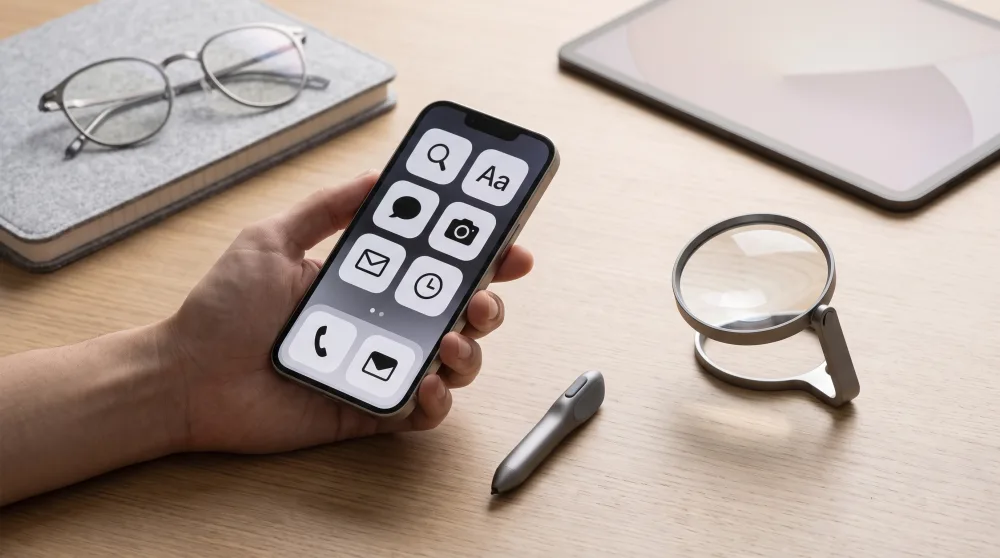
Add to that the fact that many apps are designed by young designers sitting in front of high-resolution monitors, who sometimes use small fonts because it "looks cleaner." The result is that feeling like you need a magnifying glass just to check your bank balance. Fortunately, you don't have to put up with it. Your phone has built-in settings for exactly this — you just need to know where to find them.
Increasing the font size: the simplest fix there is
The first step is adjusting the font size. It sounds obvious, but most people have never done it because they don't realize you can go beyond the default size. On both Android and iPhone, you can make the text larger globally — meaning it changes across all apps at once.
On iPhone: go to Settings, then Accessibility, and under "Text Size," drag the slider to the right. There's also an option called "Bold Text" that makes letters thicker and easier to read. Turn both on together and the difference is immediate.
On Android (Samsung, Motorola, Xiaomi, and most other brands): go to Settings, then Accessibility or Display, and look for "Font Size." Some phones have a slider, others offer options like "Small," "Medium," "Large," and "Extra Large." Pick whatever feels comfortable — don't worry about making your phone look "off." Comfort comes before aesthetics.
Full-screen zoom: when font size alone isn't enough
Sometimes bumping up the font size isn't enough, because the problem isn't just the text — it's the icons, buttons, and images that are also too small. For that, there's the Display Size setting (on Android) and Display Zoom (on iPhone).
These settings work like zooming in with a camera: everything gets bigger, but a little less fits on the screen at once. Most people assume this will "mess up" their phone, but in practice, apps handle it just fine. WhatsApp, Instagram, TikTok, and banking apps all work normally with zoom enabled.
On iPhone: go to Settings, then Accessibility and Zoom. There's also a "View" option under Settings > Display & Brightness that permanently increases the size of everything on screen.
On Android: look under Settings > Display > Display Size (or "Screen Size"). Drag the slider and watch the preview change in real time until it feels right for you.
What if I only want to zoom in on one part of the screen?
On iPhone, the "Zoom" feature (under Accessibility) lets you enable a floating zoom window: double-tap with three fingers and a magnifier appears that you can drag around the screen. Really handy for reading a specific bit of text without changing your entire phone's settings. On Android, the equivalent feature is called Magnification, also found under Accessibility.
Dark mode and contrast: your eyes will thank you
Dark mode became trendy for a real reason: a dark background with light text is easier on the eyes, especially in low-light environments. If you tend to use your phone at night or in dim rooms, turning on dark mode can make a noticeable difference in comfort.
To turn it on for iPhone: go to Settings > Display & Brightness and select "Dark." You can schedule it to turn on automatically at sunset, which is really convenient.
On Android: it's usually under Settings > Display > Dark Theme or "Night Mode." On many phones, you can also find this option in the quick-settings panel — the one that appears when you swipe down from the top of the screen.
Beyond dark mode, it's worth looking at the high contrast option. It's found in Accessibility on both systems and sharpens the edges of text and buttons, which helps a lot if you have trouble distinguishing elements on the screen. It's not the prettiest look, but for those who need it, it's a game changer.
Auto-brightness: should you just let the phone decide?
Auto-brightness adjusts the screen based on the light around you. Generally it works well and is easier on your eyes, since it keeps you from opening your phone in a dark room and getting blasted with white light. But if you find the auto setting consistently too dim or too bright for your taste, adjust it manually using the slider in your quick-settings panel. There's no right answer: the best brightness is the one that doesn't make you squint.
Read aloud: when seeing isn't enough, listening helps
Here's something most people don't know: both Android and iPhone have a feature that reads screen content out loud. It's called TalkBack on Android and VoiceOver on iPhone. These are designed for people with serious visual impairments, but there's a simpler, more accessible version for everyone else too.
On iPhone, the feature is called Speak Selection: enable it under Settings > Accessibility > Spoken Content, and then just select any text and tap "Speak." The phone reads the selected passage out loud. It works in emails, WhatsApp messages, news articles — pretty much anything.
On Android, the equivalent feature is Select to Speak, also found under Accessibility. Turn it on, tap on any text, and it reads it to you. Simple as that.
For anyone who struggles with reading due to dyslexia, eye strain, or any other reason, these features are incredibly valuable tools that are buried in menus and rarely used. If you help an older family member with their phone, set this up and show them how it works — it can completely change how they relate to their device.
Other tweaks that make a real difference day to day
Beyond the main settings already covered, there are a few smaller adjustments that, taken together, meaningfully improve the experience for anyone who has trouble with the screen.
- Reduce motion: those open-and-close app animations can cause discomfort for some people, especially those with visual sensitivity or migraines. On iPhone, it's under Accessibility > Motion > Reduce Motion. On Android, look for "Remove animations" or "Animation scale" inside Developer Options.
- Color filters and inversion: people with color blindness or sensitivity to certain colors can enable specific filters. On iPhone, it's under Accessibility > Display & Text Size > Color Filters. On Android, look for "Color Correction" or "Color Filters" under Accessibility.
- Larger touch targets and buttons: on Android tablets and iPads, you can increase the touch area for buttons, which helps people who have difficulty with fine motor control or who experience hand tremors.
- Readable font size in WhatsApp: WhatsApp has its own font size setting. Open the app, go to Settings > Chats > Font Size, and choose "Large." This is separate from your system-wide setting.
It might seem like a lot, but you don't have to do everything at once. Start with font size and dark mode. If that already helps, great. If you want more comfort, move on to the other settings. It's your phone, and it should work the way that's good for you — not the way some engineer who designed it preferred.
If someone in your family has been avoiding their phone because of reading difficulties, share this article and sit down with them to go through the settings together. Ten minutes of setup can completely change the experience of using the device. It's well worth it.