You're at your computer, working, and your phone keeps buzzing with WhatsApp notifications. So you pick up the phone, reply, put it down, go back to your computer — and realize you've completely lost track of the conversation. Or worse: someone sent an important file over WhatsApp and you needed to open it directly on your computer. Sound familiar? It happens to a lot of people. The good news is there's a permanent fix, and it's not complicated at all.
WhatsApp now lets you use the same account on up to four devices at the same time, including your computer, without needing your phone to stay on or connected to the internet. This changed a while back, but a lot of people still don't know about it — or assume it's hard to set up. It's not. Here's the full step-by-step, with clear explanations for anyone who's never done this before.
What "Linked Devices" is and why it changed everything
In the old days, WhatsApp Web (the computer version) was completely dependent on your phone. If your phone ran out of battery or lost signal, the computer version would stop working immediately. It was frustrating. You'd be in the middle of a work conversation and suddenly — nothing.
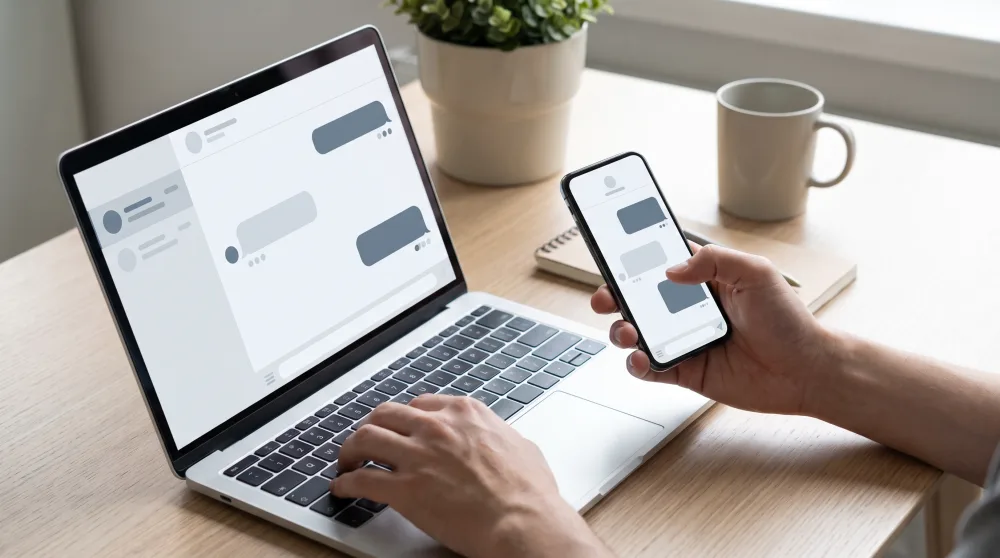
WhatsApp fixed this with a feature called Linked Devices. Now, each device you add works independently. Your computer, tablet, or even a second phone gets direct access to your messages without relying on your primary phone being on. Messages stay synced across all your devices. You reply on the computer, it shows up on your phone. You reply on your phone, it shows up on your computer. No missing messages, no weird duplicates.
How to connect WhatsApp on your computer: step by step
There are two ways to use WhatsApp on your computer: through your browser (WhatsApp Web) or through the desktop app for Windows or Mac. Both work well, but the installed app tends to be more stable and doesn't require you to keep a browser tab open. Let's walk through both.
Through your browser (WhatsApp Web)
- On your computer, open your browser and go to web.whatsapp.com. A square filled with tiny dots will appear — this is called a QR Code. Think of it like a special barcode.
- On your phone, open WhatsApp and tap the three dots in the top right corner (on Android) or tap Settings (on iPhone, it's in the bottom toolbar).
- Select Linked Devices.
- Tap Link a Device.
- Your phone's camera will open. Point it at the QR Code on your computer screen.
- That's it. Within seconds, WhatsApp opens on your computer with all your conversations.
It's that simple. Scanning the QR Code is fast — almost instant — and you don't need to type in any password.
Through the desktop app
If you'd rather have WhatsApp as an installed program, go to the official site at whatsapp.com/download and download the version for your operating system (Windows or Mac). Install it like any other program. When you open it for the first time, it'll show the same QR Code as the browser version. The connection process is identical: point your phone at it, scan the code, and you're in.
The advantage of the installed app is that it runs in the background, shows up in your taskbar, and sends desktop notifications whenever a new message comes in. It feels a lot more like using your phone.
You can link a second phone too
A lot of people don't realize that Linked Devices isn't just for computers. You can connect a second phone as well. This is great if you have a personal phone and a work phone, for example, and want access to the same WhatsApp on both without swapping your SIM card back and forth.
On the second phone, download WhatsApp normally. On the opening screen, instead of logging in with a phone number, look for the option Link as Companion Device. It's right below the sign-up button. From there it's the same process: scan the QR Code with your primary phone and the second phone is linked. Keep in mind that this second phone can access your messages, but voice and video calls through linked devices are only available on the desktop app — not on a linked phone.
What about messages? Will any get lost in the process?
This is the question everyone asks. The answer is: no — as long as you understand how it works.
When you link your computer, it starts receiving messages from that point forward. Your older message history stays on your phone, except for what was already backed up to the cloud. So if you linked your computer today, you won't see messages from three months ago on it, but you'll receive everything going forward.
If you disconnect a device and reconnect it later, the same applies. Any messages that came in while it was disconnected will appear when you reconnect, as long as your primary phone was online at some point during that time. WhatsApp holds pending messages for up to 14 days. If your computer was disconnected for more than 14 days, those messages will only be on your phone.
Important tip: if you use WhatsApp Web on a public computer, a shared work machine, or any computer that isn't yours, make sure to log out when you're done. Go to Linked Devices on your phone and disconnect that device. If you forget, anyone with access to that computer can read your messages.
How to manage and safely disconnect devices
WhatsApp gives you full control over which devices are connected to your account. To see the list, open Linked Devices on your phone. You'll see each device listed with the browser or operating system name, the date of last activity, and the device type.
If you see anything you don't recognize, disconnect it immediately. Tap on the unknown device and select Log Out. That access is cut off right away — no one can read your messages through that device anymore. It's worth checking this list every now and then as basic digital hygiene, the same way you'd check who's logged into your Instagram account or your bank.
Another common situation: you got a new computer or wiped your old one. The old device might still show up in the list as connected, even if the browser was closed. Disconnect it manually through your phone just to be safe.
What works (and what doesn't yet) on the computer
The desktop version of WhatsApp is pretty full-featured these days, but there are some differences from the phone version worth knowing about so you're not caught off guard.
What works normally:
- Sending and receiving text messages, voice messages, photos, videos, and documents
- Voice and video calls (in the installed app for Windows and Mac — not in the browser)
- Reading group messages
- Quick replies using keyboard shortcuts
- Dragging and dropping files from your computer straight into a conversation
- Pinning chats and using the search bar
What still has limitations:
- WhatsApp Status: you can view contacts' statuses, but posting from your computer is limited or unavailable depending on your version
- WhatsApp Channels: the experience is more complete on mobile
- Old message history doesn't transfer to the computer automatically
For everyday work use, the desktop version does the job really well. You can reply to messages while typing up a document, copy links you receive directly, open PDF files without having to transfer them anywhere. People who handle customer service, for example, often notice a big jump in productivity.
What to do if the connection isn't working
Sometimes the QR Code won't show up, stays stuck loading, or says it's expired. It's more common than you'd think, and there's an easy fix.
If the QR Code has expired (it'll look grayed out with a refresh button), just click that button to generate a new one. You only have a few seconds to scan the code after it appears, so have your phone camera ready before you hit refresh.
If the WhatsApp Web page freezes or won't load, try clearing your browser cache or switching to a different browser. Chrome and Edge tend to work best. On your phone, make sure WhatsApp is up to date. A very outdated version can have trouble linking new devices.
If you get a message saying you already have four devices linked, you'll need to disconnect one before adding another. Remember, the limit is four devices in addition to your primary phone.
Setting up WhatsApp to work on both your computer and your phone at the same time takes less than two minutes. Once it's done, you stop missing messages, stop constantly reaching for your phone, and you can send files directly from your computer through a conversation — no email, no forwarding-to-yourself group needed. It's absolutely worth the minimal setup effort.